Frequently Asked Questions
- Ultra high performance through memory sharing between vm and host
- OpenGL support
- File sharing between vm and host
- Native adb support
- Multiple instance support
- Copy and Paste texts between vm and host
- Host IME
- Key mapping, Any touch gesture you would use on an android device can easily be mapped to a keyboard or mouse gesture
- Audio output and microphone input
- High compatibility, more than 98% of Android apps can run in LeapDroid
- Dual core AMD or Intel CPU
- 32/64-bit of Windows 7 or above
- GPU with OpenGL 2.1 or above
- Minimum 2GB of System RAM, 4GB is recommended for better performance
- Minimum 2GB of Hard disk free space
- *Hardware Virtualization Technology(Intel VT-x/AMD-V) enabled (Recommended for better performance)
- *Hyper-V disabled (Recommended for better performance)
There are two ways to identify that your Device supports VT and is enabled.
#1 Way:
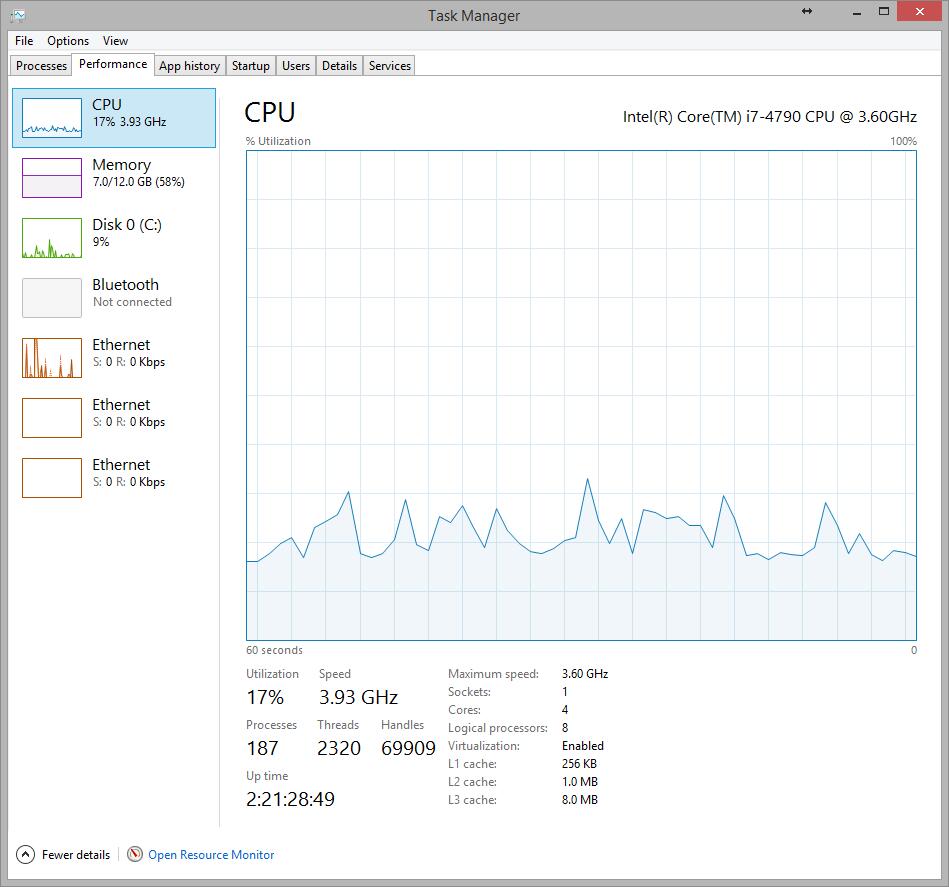
- For Windows 8/8.1/10 Users only
You can confirm the Virtualization status in Task Manager -> Performance -> CPU tab
- For Windows 7 Users only
Run Microsoft® Hardware-Assisted Virtualization Detection Tool from http://www.microsoft.com/en-us/download/details.aspx?id=592 and follow the on-screen instructions.
#2 Way:
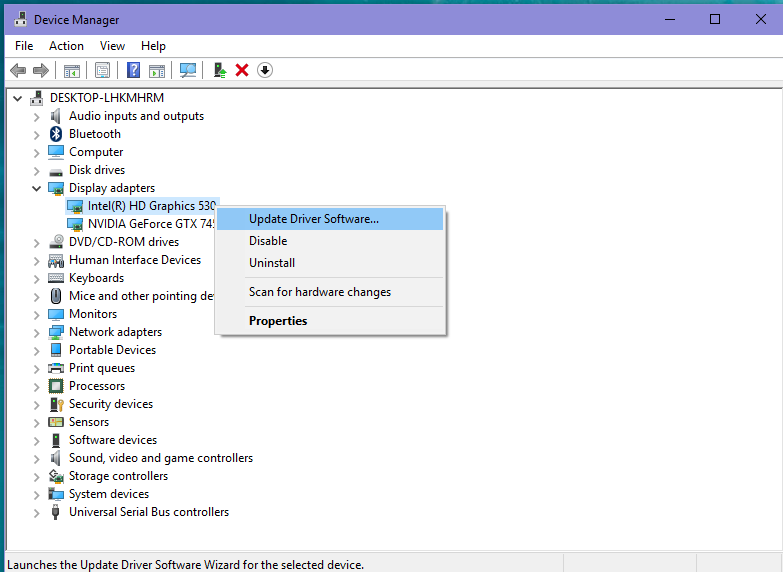
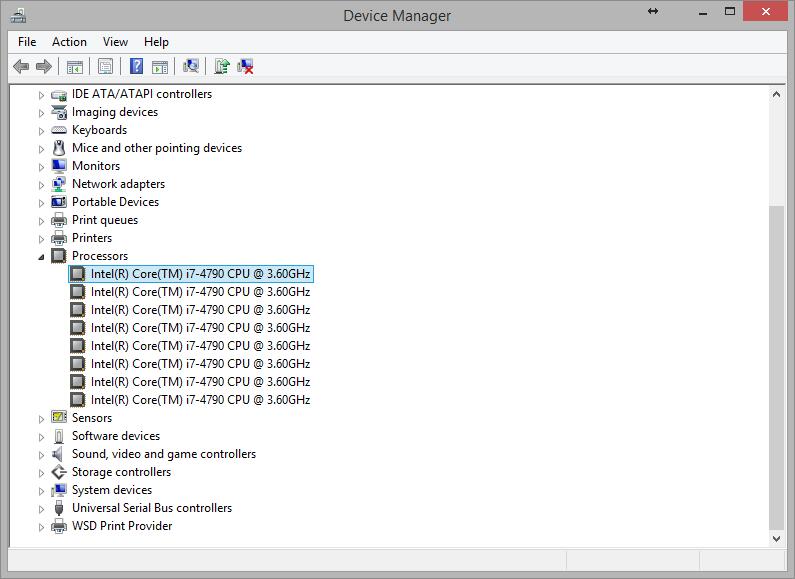
- If your PC has an Intel processor, you can check the processor’s capabilities from here by your processor number. The processor number can be obtained from the Windows Device Manager.
- For example, as shown in the picture, i7-4790 is the processor number.
In order to enjoy the full performance of Leapdroid, Virtualization Technology should be enabled in BIOS. This section describes how to enable hardware virtualization extensions in your BIOS if they are disabled.
1) Go into BIOS setup:
Power on the PC, enter the BIOS setup by pressing ‘F2’ or ‘Del’ or ‘Enter’ key(which depends on your motherboard model, please follow the on-screen instructions during Power ON).
You will then see the setup page like below.

2) Choose Advanced:
Use the ‘Left’ and ‘Right ‘ keys to select the Advanced menu, then use ‘Enter’ to select the ‘Processor Configuration’ menu.

3) Check VT:
You should now see the VT menu. Use ‘Enter’, ‘Up’ and ‘Down’ to enable Virtualization Technology.
Note: If it is enabled, you can just quit BIOS.


You can not use Leapdroid to make phone calls.
Note: But apps such as skype, viber, google voice, wechat and others may be used to talk over the network.
*Note: Make sure your APK file name does not contain spaces.
Method 1: Toolbar APK install
On the right hand toolbar, click the APK button (resembles a download button with a tray and an arrow pointing downwards). This should open a File Explorer window. Locate and select your APK file and click open.
Method 2: Drag and Drop
Alternatively, just drag and drop your APK file from your computer’s File Explorer onto the Leapdroid screen.
Method 3: Command Line Install
If the above methods do not not work for you, you have to install using the command prompt, which is a little more complicated.
First, open the command prompt. You can use Windows + R to get the “Run” dialog box from the Windows Start menu, then input ‘cmd’ to open the Windows Command prompt.
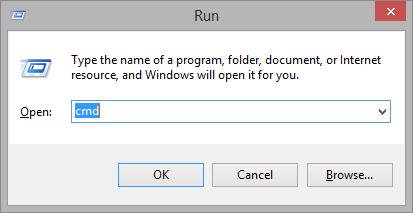
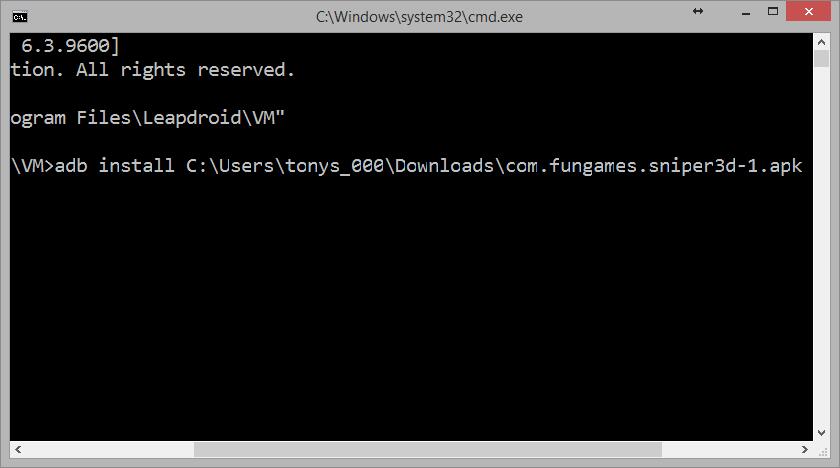
Type ‘cd “\Program Files\Leapdroid\VM”‘ into the command prompt and hit enter.

Type ‘adb install’ + <apk filename> and hit enter.
Note: you can drag the apk to the Windows Command prompt window to get the filename.
Now you can enjoy your games on Leapdroid!

Yes. Here is a full list of keyboard shortcuts that you can use within Leapdroid:
- Esc – back
- F1 – return to home screen
- F2 – back
- F4 – app overview
- F5 – shake
- F7 – decrease volume
- F8 – increase volume
- right Ctrl – exit full screen
- Ctrl + mouse scroll – zoom
- Ctrl + Alt + Esc – hide/display toolbar
Go to your Leapdroid install folder, by default, it should be “C:\Program Files\Leapdroid\VM”
Click VirtualBox.exe
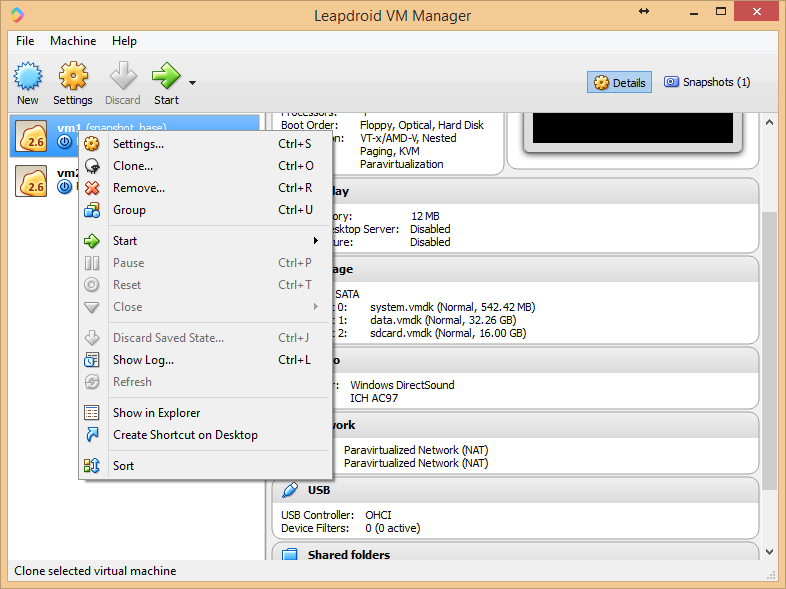
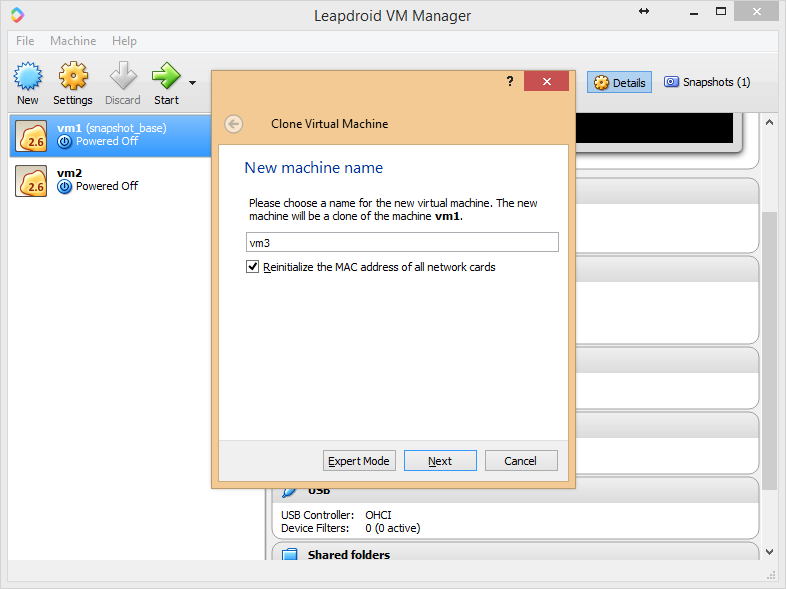
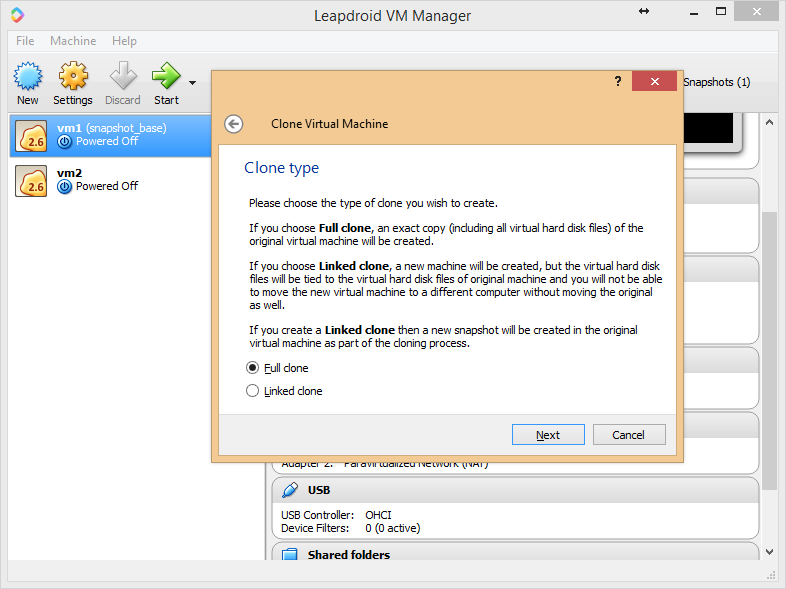


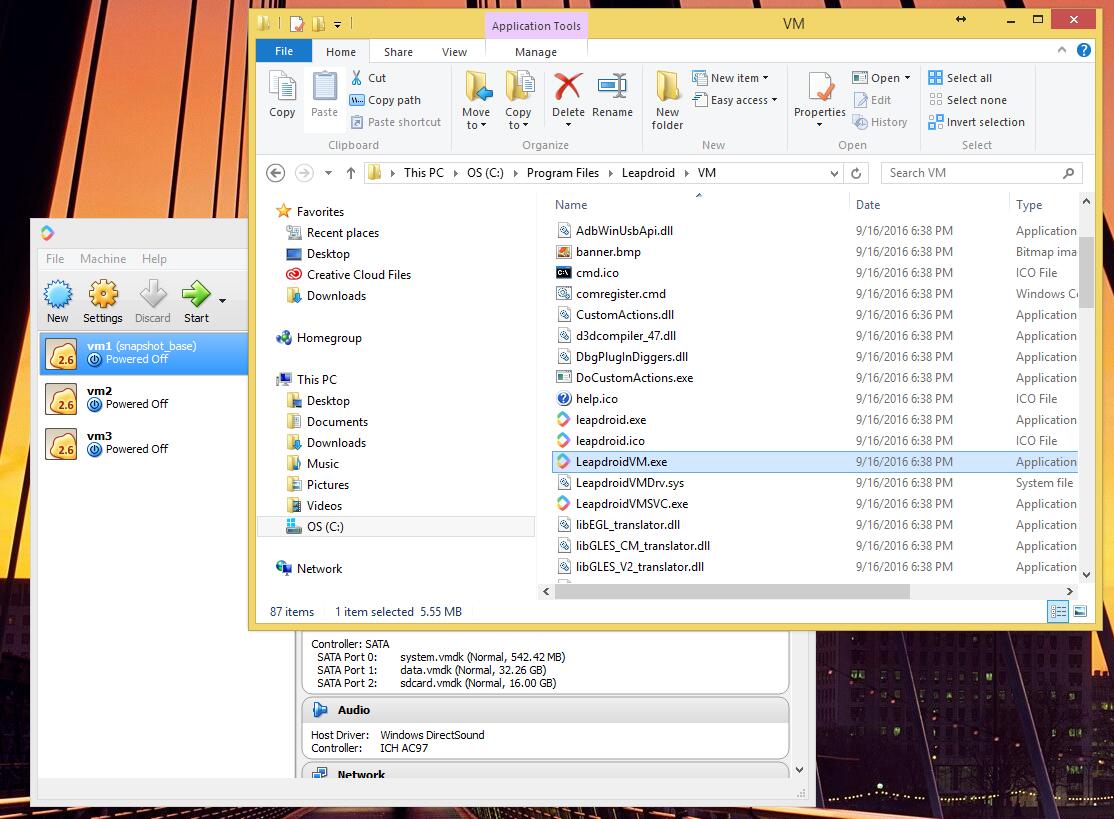
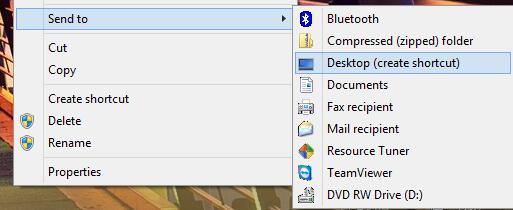
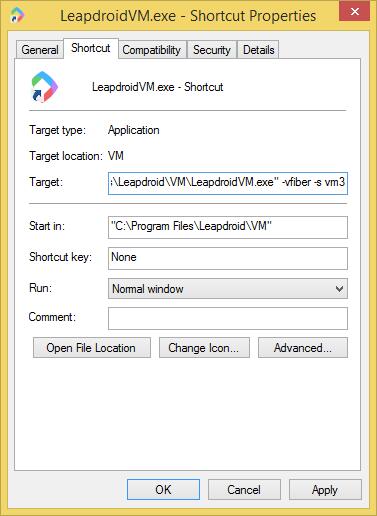
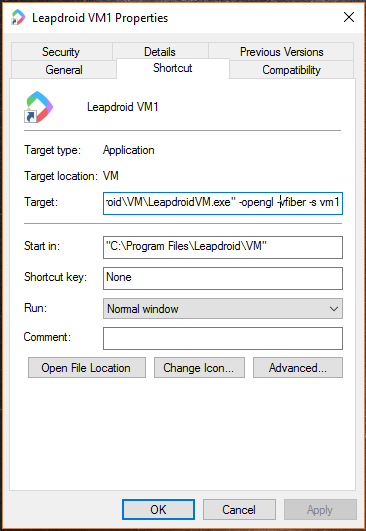
Right click the shortcut, choose “Properties”, in the “Shortcut” section, add “-vfiber -s YourVMname” after the path in Target line