Ultimately, whether you’re a beginner or an experienced punter, the best sports betting sites Singapore offer trusted platforms with bonuses, fast payouts, and wide sports coverage, making 2025 an exciting year for local bettors.

Frequently Asked Questions

LeapDroid is an Android emulator that runs Android apps on Windows PC. LeapDroid employs state-of-the-art virtual machine technologies to run the whole Android system inside Windows with very high performance. It immediately turns a PC into a very powerful Android tablet.
  • Ultra high performance through memory sharing between vm and host
  • OpenGL support
  • File sharing between vm and host
  • Native adb support
  • Multiple instance support
  • Copy and Paste texts between vm and host
  • Host IME
  • Key mapping, Any touch gesture you would use on an android device can easily be mapped to a keyboard or mouse gesture
  • Audio output and microphone input
  • High compatibility, more than 98% of Android apps can run in LeapDroid
  • Dual core AMD or Intel CPU
  • 32/64-bit of Windows 7 or above
  • GPU with OpenGL 2.1 or above
  • Minimum 2GB of System RAM, 4GB is recommended for better performance
  • Minimum 2GB of Hard disk free space
  • *Hardware Virtualization Technology(Intel VT-x/AMD-V) enabled (Recommended for better performance)
  • *Hyper-V disabled (Recommended for better performance)

There are two ways to identify that your Device supports VT and is enabled.

#1 Way:

  • For Windows 8/8.1/10 Users only

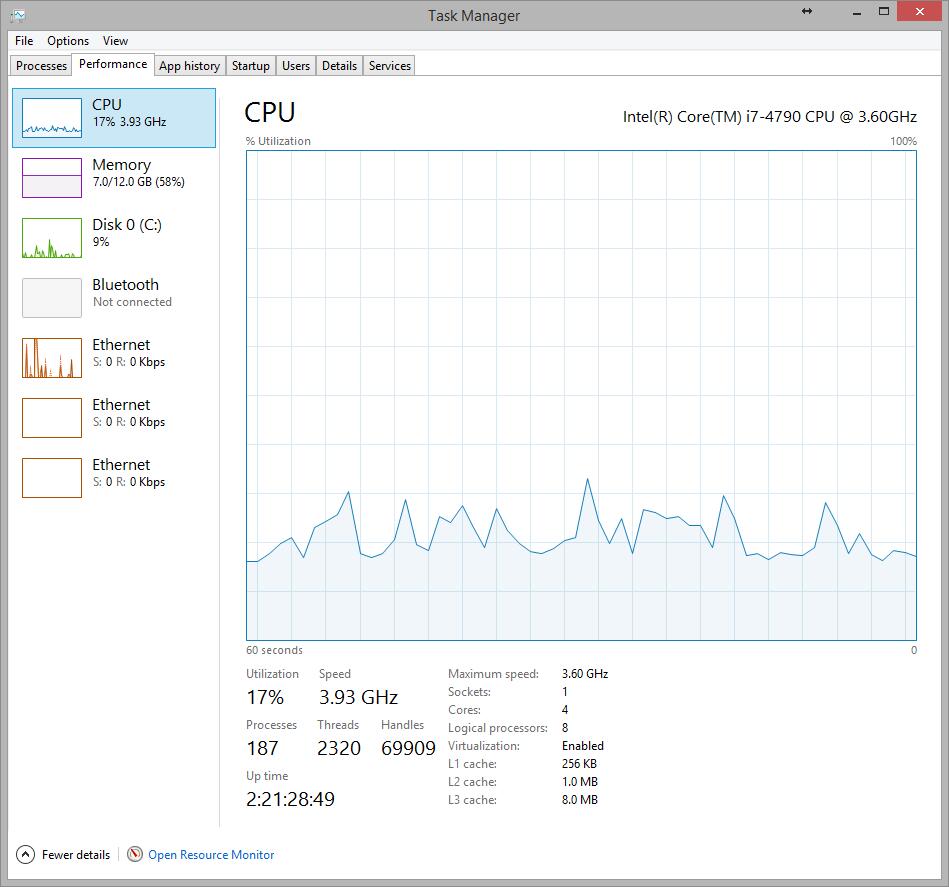
    You can confirm the  Virtualization status in Task Manager -> Performance -> CPU tab
     
 
  • For Windows 7 Users only

    Run Microsoft® Hardware-Assisted Virtualization Detection Tool from http://www.microsoft.com/en-us/download/details.aspx?id=592 and follow the on-screen instructions.


#2 Way:

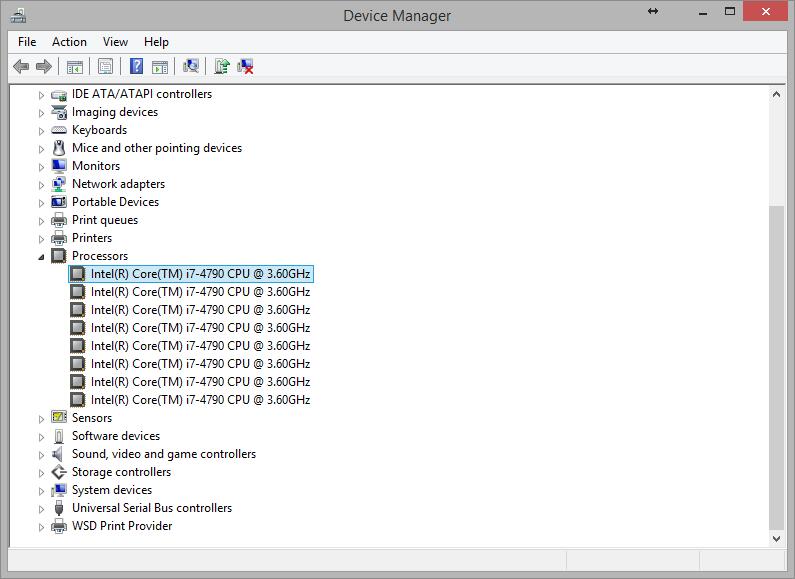
  • If your PC has an Intel processor, you can check the processor’s capabilities from here by your processor number. The processor number can be obtained from the Windows Device Manager.

     
  • For example, as shown in the picture, i7-4790 is the processor number.
In order to enjoy the full performance of Leapdroid, Virtualization Technology should be enabled in BIOS. This section describes how to enable hardware virtualization extensions in your BIOS if they are disabled.

1) Go into BIOS setup:
Power on the PC, enter the BIOS setup by pressing ‘F2’ or ‘Del’ or ‘Enter’ key(which depends on your motherboard model, please follow the on-screen instructions during Power ON). You will then see the setup page like below.

2) Choose Advanced:
Use the ‘Left’ and ‘Right ‘ keys to select the Advanced menu, then use ‘Enter’ to select the ‘Processor Configuration’ menu.

3) Check VT:
You should now see the VT menu. Use ‘Enter’, ‘Up’ and ‘Down’ to enable Virtualization Technology.
Note: If it is enabled, you can just quit BIOS.

4) Save and quit:
When everything is done, go to the Exit menu, and then select Save Changes and Reset.
Now you can enjoy the full experience of the Leapdroid Player!

You can not use Leapdroid to make phone calls.
Note: But apps such as skype, viber, google voice, wechat and others may be used to talk over the network.


*Note: Make sure your APK file name does not contain spaces.

Method 1: Toolbar APK install

On the right hand toolbar, click the APK button (resembles a download button with a tray and an arrow pointing downwards). This should open a File Explorer window. Locate and select your APK file and click open.

 
Method 2: Drag and Drop

Alternatively, just drag and drop your APK file from your computer’s File Explorer onto the Leapdroid screen.

 
Method 3: Command Line Install

If the above methods do not not work for you, you have to install using the command prompt, which is a little more complicated.

First, open the command prompt. You can use Windows + R to get the “Run” dialog box from the Windows Start menu, then input ‘cmd’ to open the Windows Command prompt.
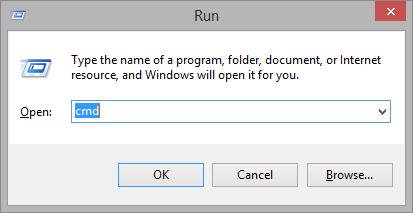

Type ‘cd “\Program Files\Leapdroid\VM”‘ into the command prompt and hit enter.


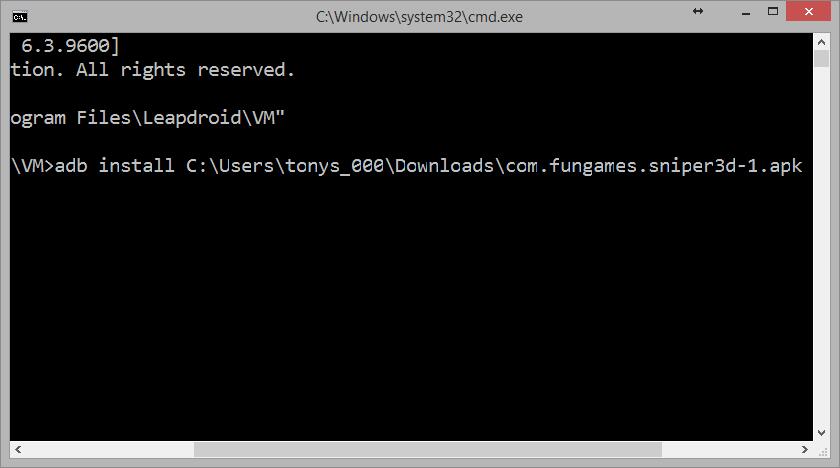
Type ‘adb install’ + <apk filename> and hit enter.
Note: you can drag the apk to the Windows Command prompt window to get the filename.


Now you can enjoy your games on Leapdroid!

Yes. Here is a full list of keyboard shortcuts that you can use within Leapdroid:

  • Esc – back
  • F1 – return to home screen
  • F2 – back
  • F4 – app overview
  • F5 – shake
  • F7 – decrease volume
  • F8 – increase volume
  • right Ctrl – exit full screen
  • Ctrl + mouse scroll – zoom
  • Ctrl + Alt + Esc – hide/display toolbar
We support two way VM<–>Host copy paste. On the host, you can use the usual Ctrl+C to copy and Ctrl+V to paste. On the VM, left click and hold the mouse until you can select copy or paste.

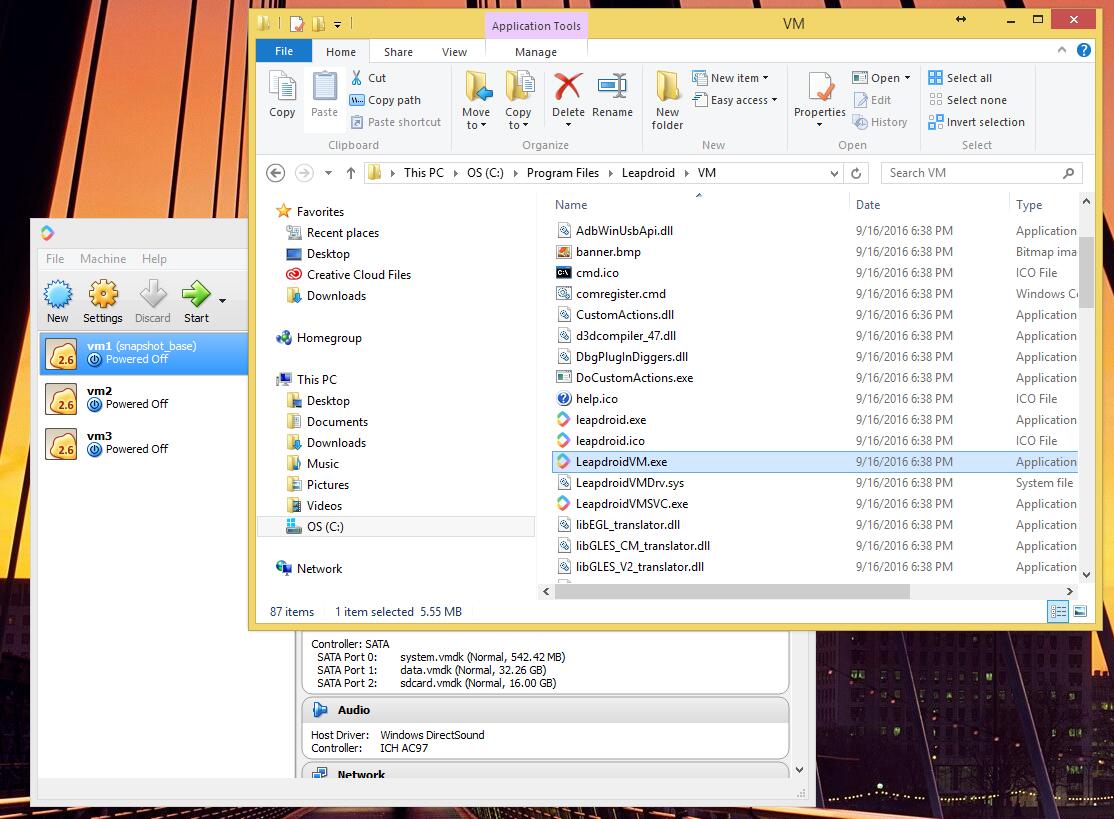
Go to your Leapdroid install folder, by default, it should be “C:\Program Files\Leapdroid\VM”
Click VirtualBox.exe
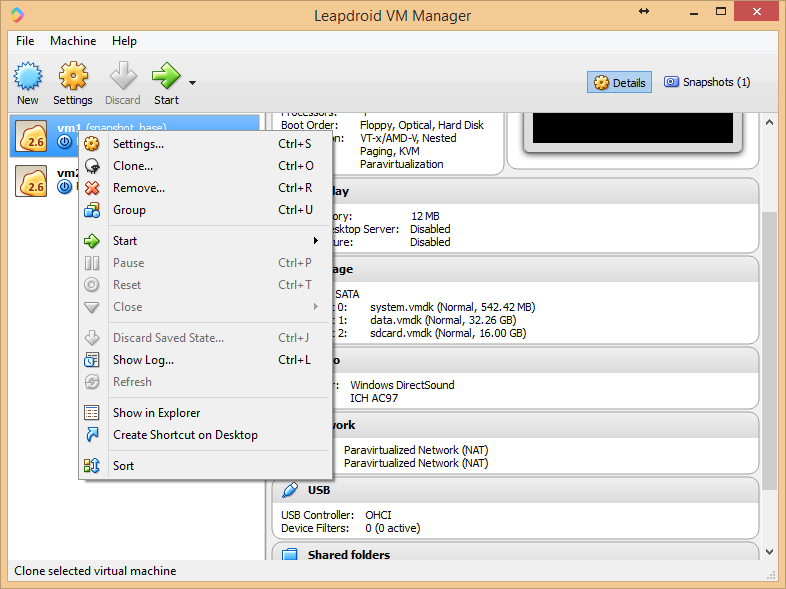
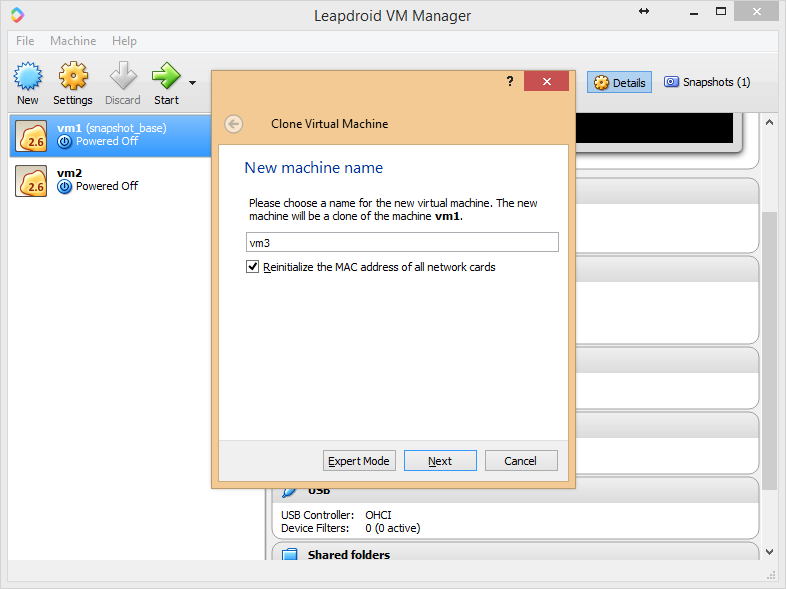
1) Clone VM in VirtualBox:
Choose the VM you want to clone, right click, select “Clone”

Input the new VM’s name, choose “Reinitialize the MAC address of all network cards”

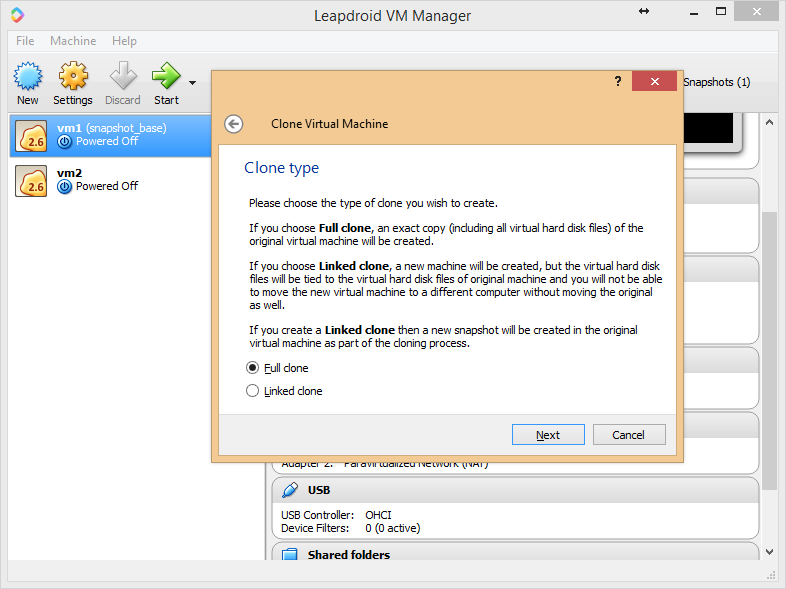
Choose “Full clone”, then “Next”

Choose “Current machine state”, then “Clone”

Now you get a new VM

2) Create shortcut for new VM:
Still the installer folder, find the “LeapdroidVM.exe”

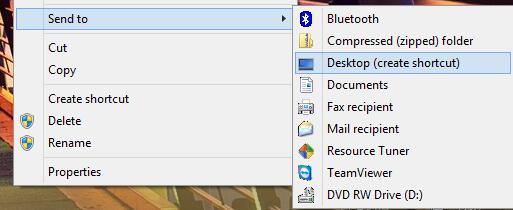
Right click “LeapdroidVM.exe”, choose “Send to”, then “Desktop(create shortcut)”

Right click the shortcut, choose “Properties”, in the “Shortcut” section, add “-vfiber -s YourVMname” after the path in Target line
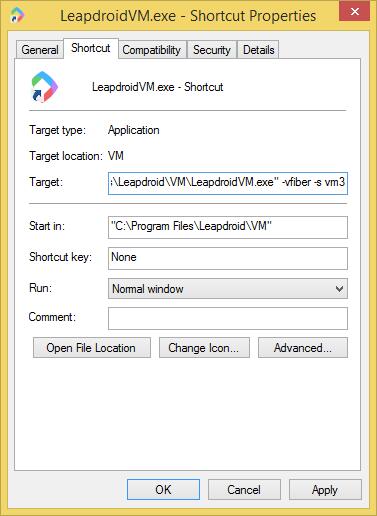
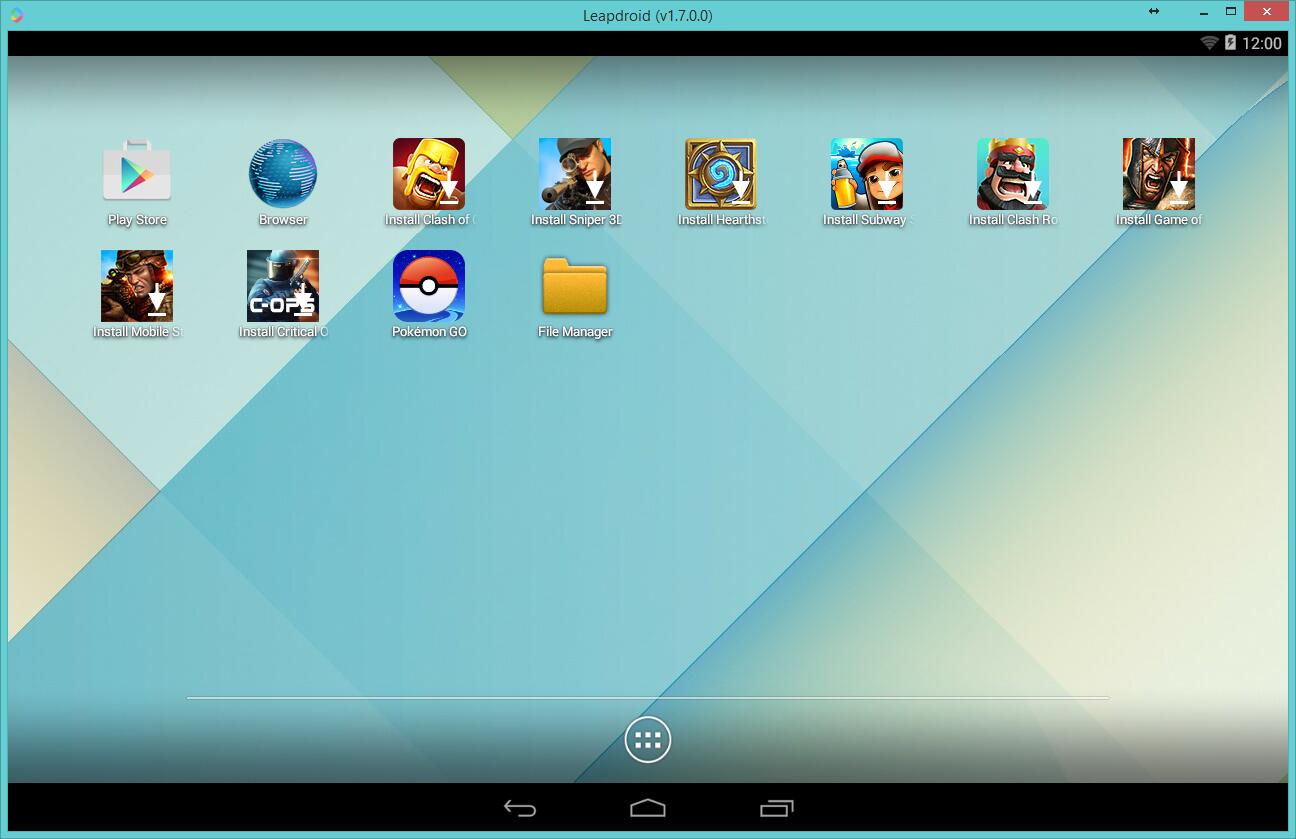
Now you can launch the new VM by using this shortcut

It is possible to back up your data. The data is located at Documents\Leapdroid\VMs\vm1 under data.vmdk. Save this file elsewhere before you uninstall and reinstall the updated version of Leapdroid. Finally, replace your data.vmdk back to its original location.

Troubleshooting

Most likely the android system has crashed due to some internal error. Please close the application and restart it.

This problem may be caused by some conflicting devices attached to your Google account. To fix this issue follow these steps:

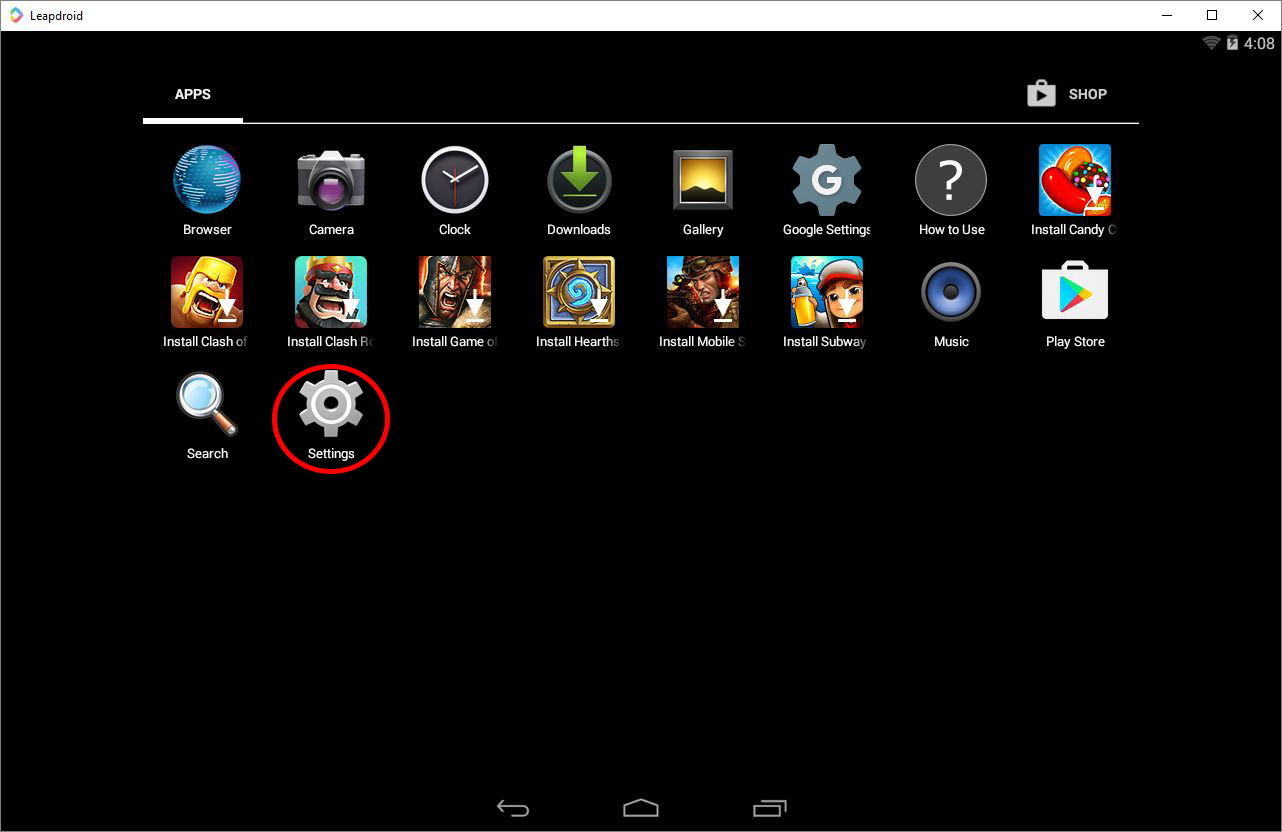
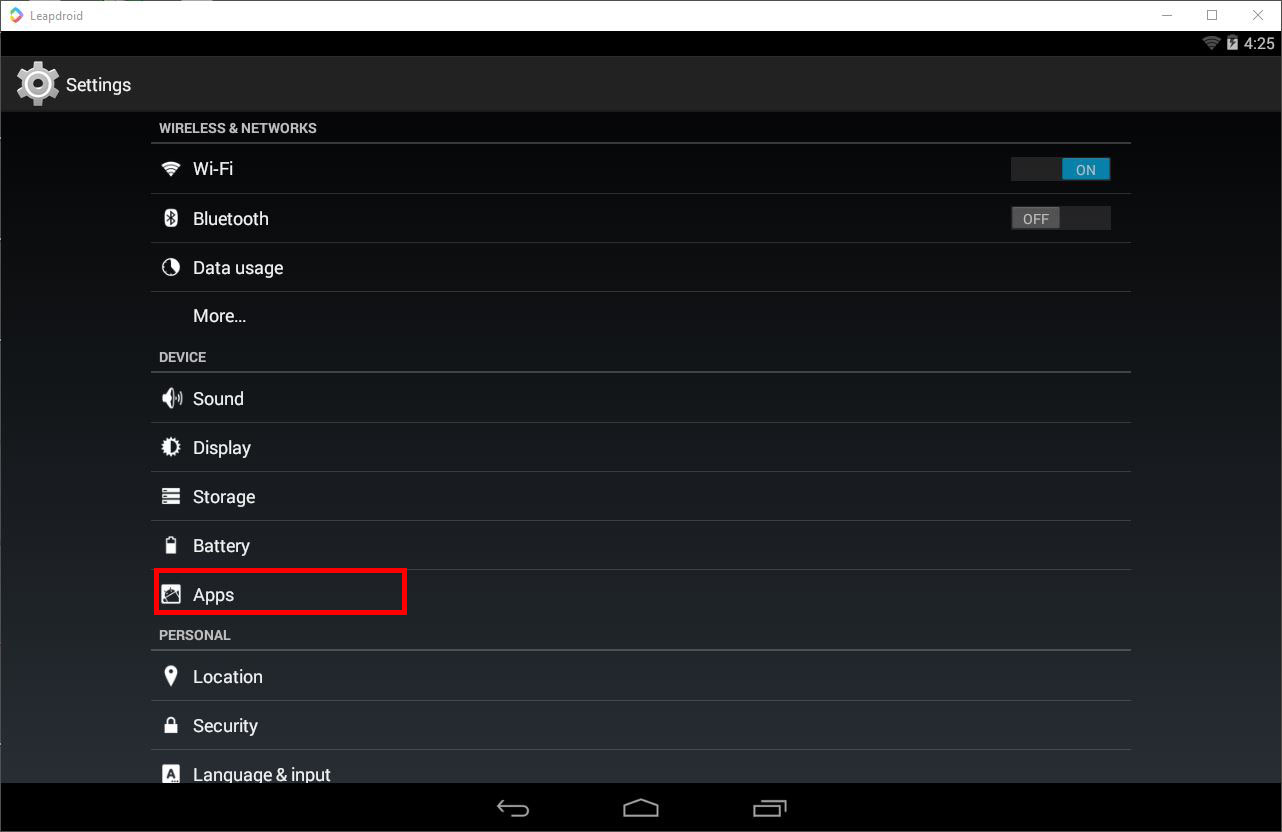
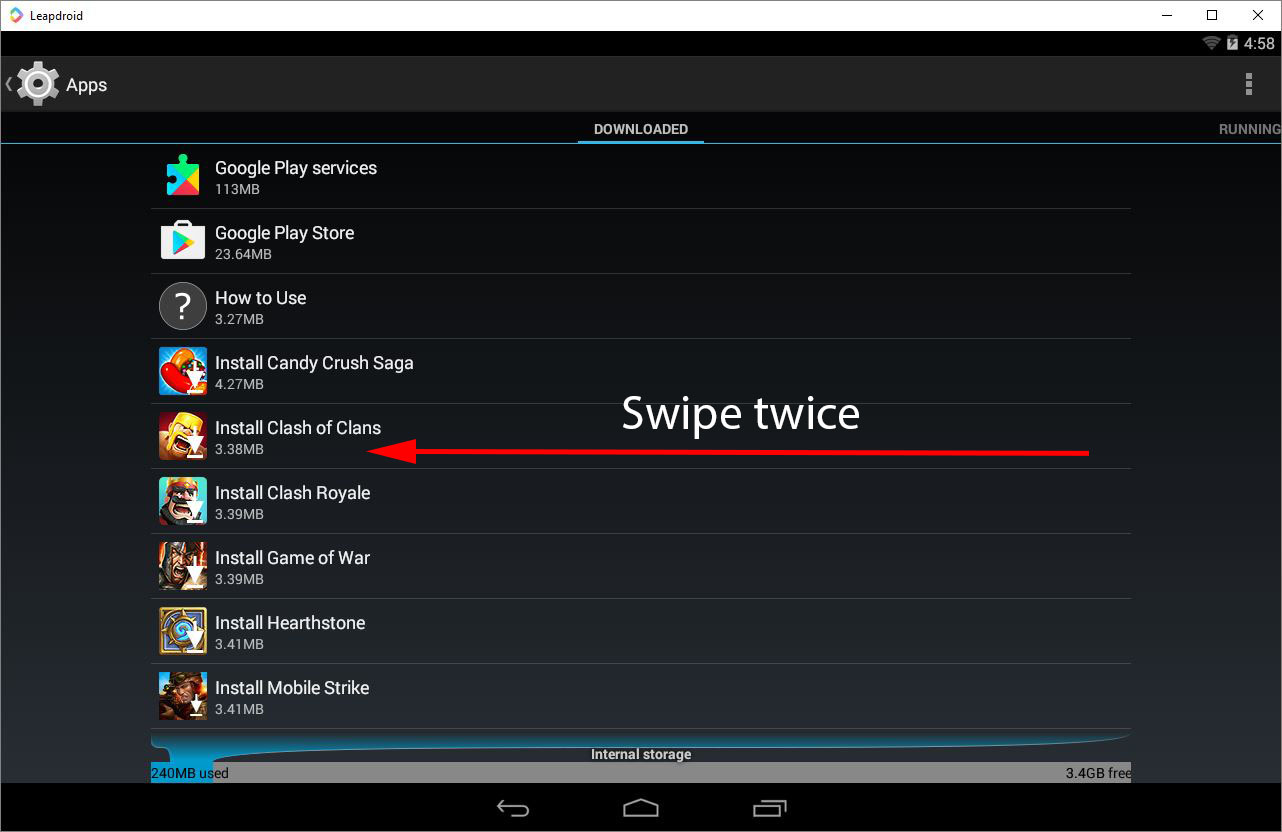
  1. Go to Settings->Apps->all apps in Leapdroid.


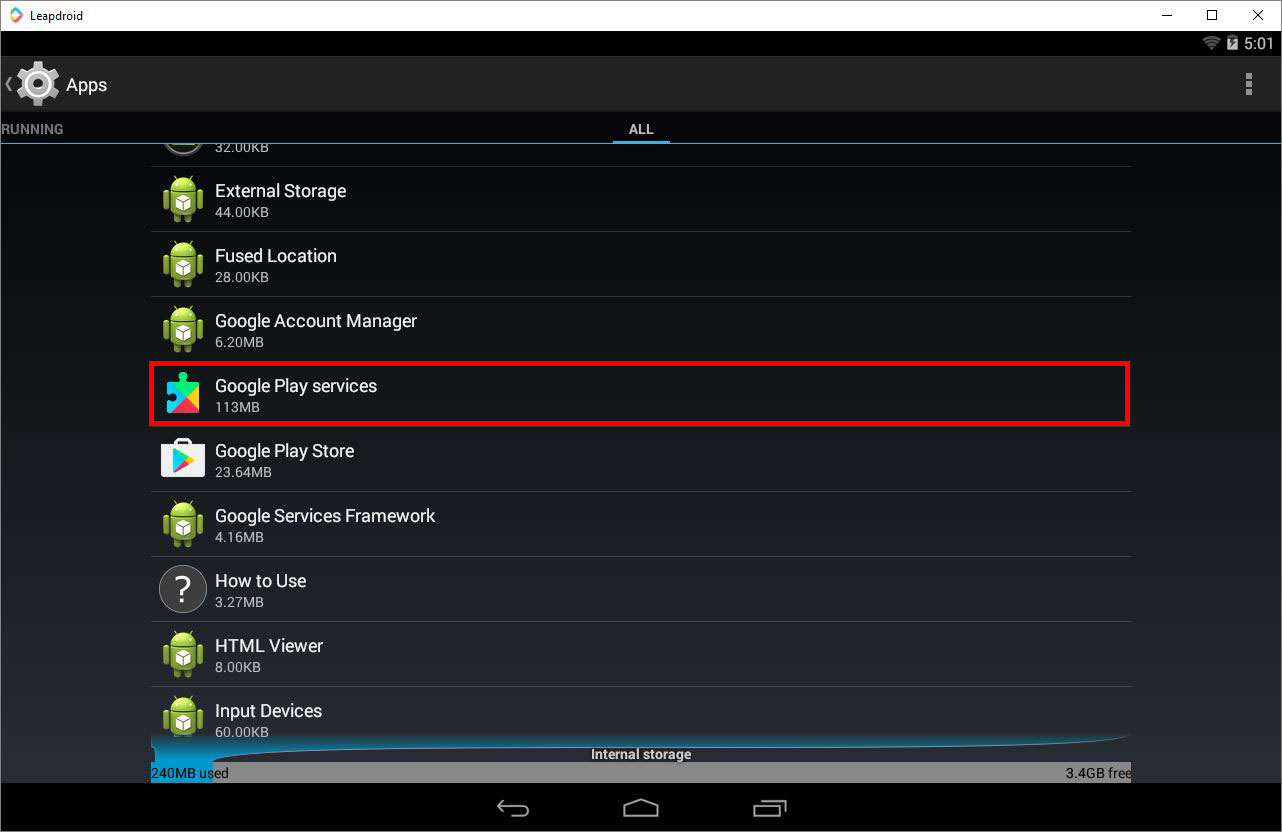
  2. Scroll to “Google Play Services” and click on it. Click on Manage Space->Clear All Data. then click on “Force Stop.”  
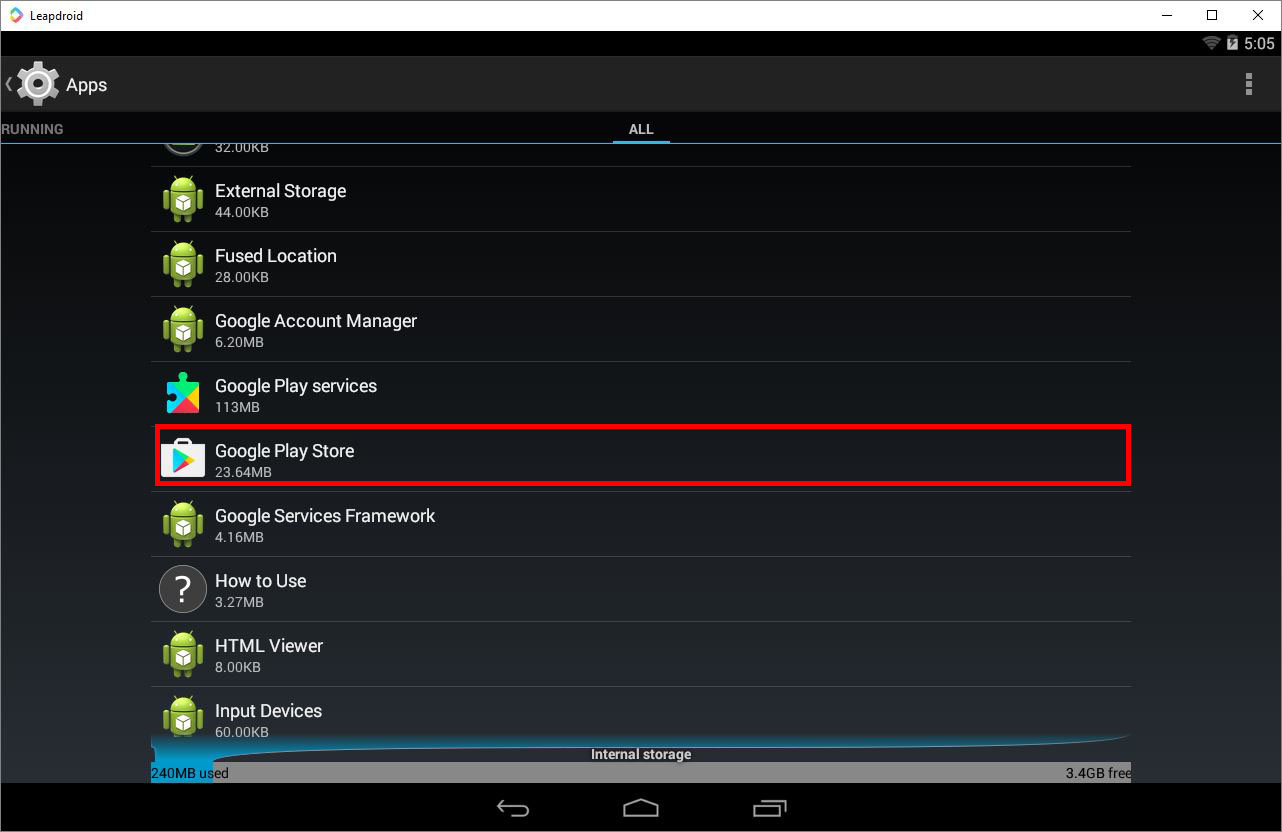
  3. Repeat the previous instruction for “Google Play Store.” Click on “Clear Data,” then “Force Stop.”
     
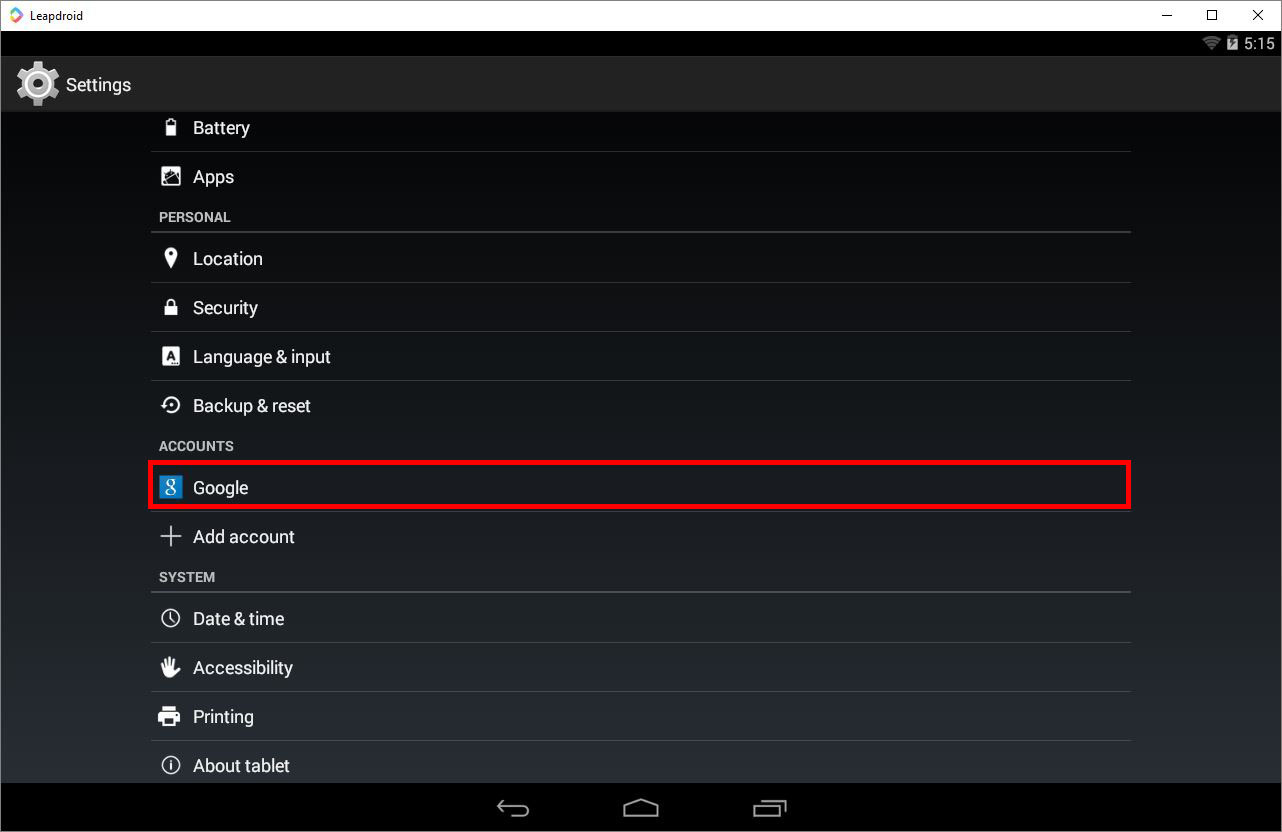
  4. Go to Settings->Google in Leapdroid.
     
  5. Go to click on your Google account.
     
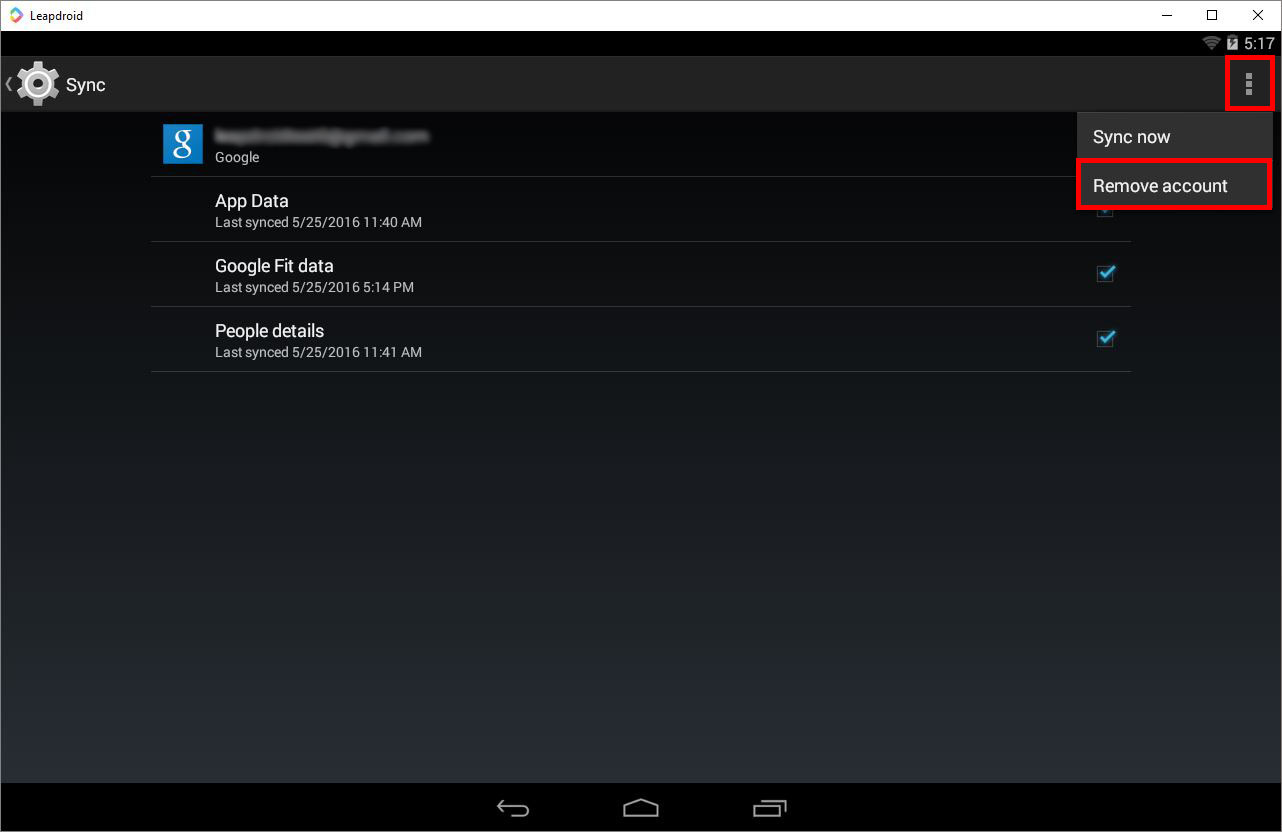
  6. Click in the top-right corner, then click on “Remove account.” You will then be prompted whether you want to remove your account. Click “Remove account.”
     
  7. Go to https://myaccount.google.com/ in your favorite browser and click the “Sign in” button located in the top-right corner.
  8. After you’ve signed in, click on “Device activity & notifications” under “Sign-in & security.”
  9. On the right side of the page, under “Recently used devices,” click on “Review Devices.”
  10. Click on each one of your devices, and if it has a “Remove” button, click it.
  11. Close Leapdroid and restart.
  12. Open the Google Play Store, and re-enter your Google account information.
Visit our downloads page for alternative installers and download mirrors.

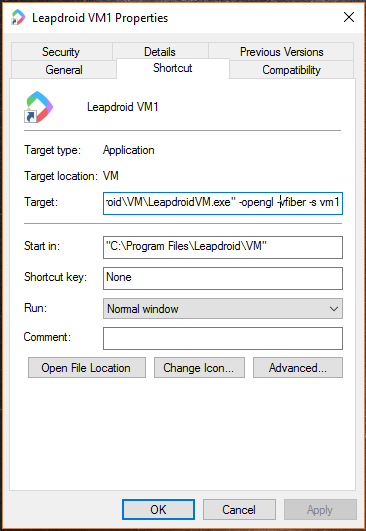
While some games do not work with the recent DirectX versions, they may still work in OpenGL mode. To change to OpenGL mode, add -opengl to the shortcut like below:

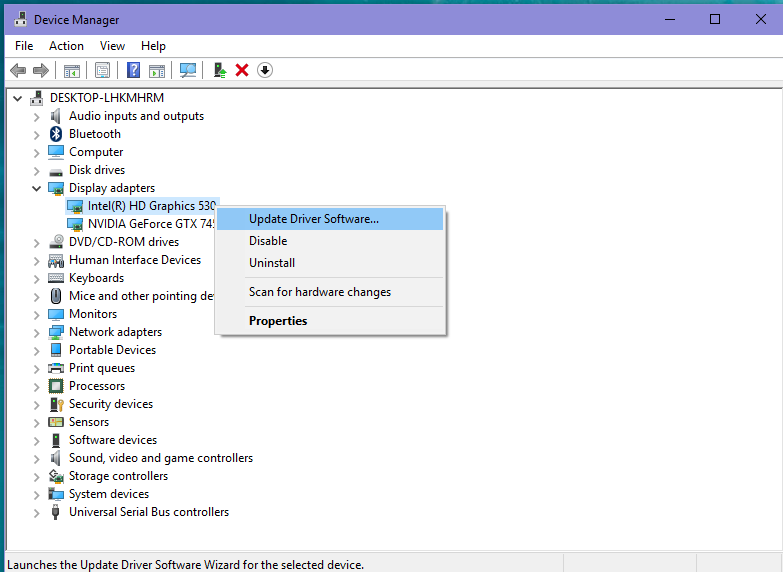
This could be because your Display adapter is out of date. To fix this, open your Windows Device Manager. Click Display adapters. Listed should be your graphics cards; common ones include Intel or NVIDIA. Right click each and select “Update Driver Software.”

We’ve found a serious conflict when running Leapdroid on a computer with Avast AntiVirus installed. Different scenarios include:

  1. The exe installer freezes during install.
  2. The msi installer runs but freezes when launching LeapdroidVM.

The only fix is to uninstall Avast AntiVirus. Below is a short explanation of why.


We run Leapdroid by utilizing the virtualization extension of the CPU. Typically, it is allowable for multiple applications to use this extension at the same time. But it is also possible for a software to get exclusive usage of the extension.

It is the responsibility of the software (who acquired the exclusive usage of virtualization extension) to provide proper support for those software which require the extension. Actually, in the latter case, the software (who acquired the exclusive usage of virtualization extension) is putting the whole system into a virtual machine. It is their responsibility to ensure every software that is supposed to run on PC can run in this special virtual machine. Avast is not doing this job well enough.


For us to help you, you need to generate an adb log and send it to us so we can debug your issue.

To get this log,
  1. Start LeapDroid
  2. Open a command prompt (hit the windows key, and type ‘cmd’, and hit enter).
  3. In the command prompt, type cd “C:\Program Files\Leapdroid\VM”
  4. type: adb logcat -c
  5. Go back to LeapDroid, and reproduce your crash.
  6. Go back to the command prompt, and type:
    adb logcat > c:\users\&ltyour-login-id;>\Desktop\logcat.txt (Where you need to replace &ltyour-login-id;> with your username.)
  7. After you press Enter, press ctrl+c to stop the log.
  8. You should now see a file called logcat.txt on your desktop. Send this to our [email protected] email.

To get the updated Pokemon Go keymapping, you must first delete the old one. This old keymapping file is in the following directory:
C:\Users\&ltyour-login-id;>\AppData\Local\Leapdroid\Leapdroid Emulator\keymapconf (Where you need to replace &ltyour-login-id;> with your username.)
Find the file named com.nianticlabs.pokemongo.cfg and delete it.

It is possible that another keymapping file has been generated if you had created your own keymappings. To be safe, check the UserFiles\ folder in the keymapconf\ directory. If there is a com.nianticlabs.pokemongo.cfg file in this folder, either delete it too or move it if you want to save it.

Then, restart Pokemon Go. The new keymappings for dodging and auto-throwing pokeballs should be present.

If you had chosen to save your own keymapping file that was in the Userfiles folder, you must now move it back into the Userfiles folder.

With recent Windows 10 anniversary release, Leapdroid VM will trigger BSOD. The reason of the crash is a conflict between Hyper-V and Virtualbox driver. Please uninstall Hyper-V in this case.